
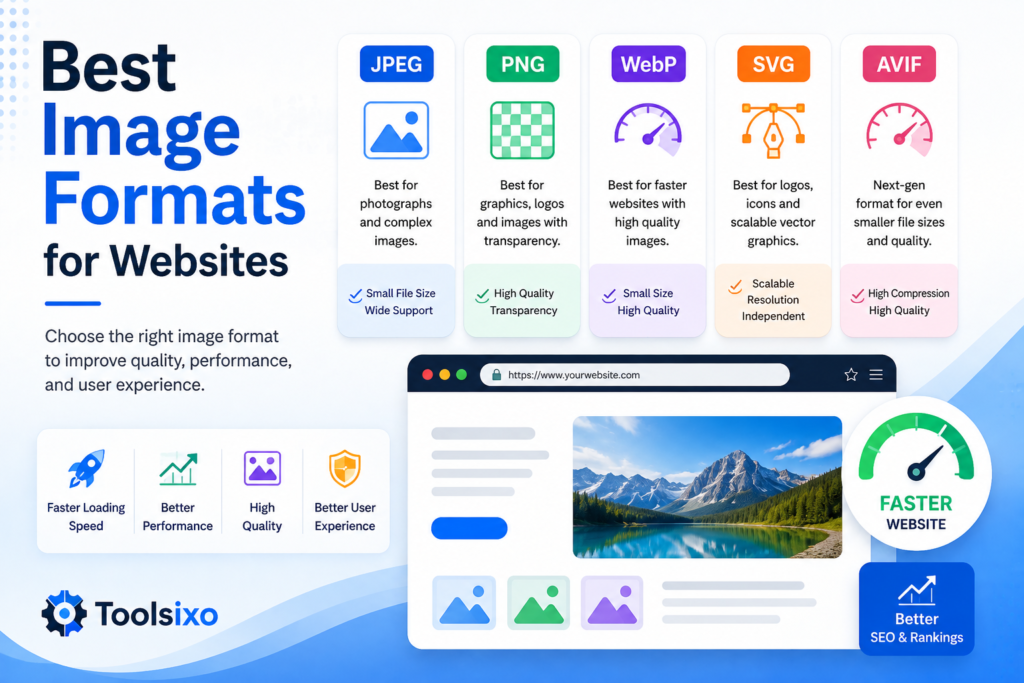
The best image format depends on what the image contains. WebP is a strong general choice for website photos and illustrations, JPG offers broad compatibility for photos, PNG is useful when transparency is necessary, and SVG is ideal for logos and icons.
Choosing the correct format matters because oversized image files can make pages slower. However, format is only part of the solution. You should also resize and compress every image before publishing it.
Quick Comparison of Website Image Formats
Format: Best for Transparency Main consideration
WebP Photos and illustrations Yes Strong general-purpose web format
AVIF: Highly compressed photos Yes Check compatibility with your website workflow
JPG/JPEG Photographs No Widely supported but may lose detail during compression
PNG Transparent graphics and screenshots: yes Files can become large
SVG logos, icons, and simple graphics Yes Not intended for ordinary photographs
GIF Simple animations Yes Usually inefficient for detailed visuals
1. WebP: Best General-Purpose Choice
WebP works well for photographs, illustrations, thumbnails, banners, and other common website graphics. It supports transparency and can provide smaller files than older formats in many situations.
Use WebP for:
– Blog featured images
– Product photos
– Website banners
– Illustrations
– Thumbnails
– Graphics requiring transparency
WebP is a practical default when your website and editing tools support it. Even so, you should resize the image appropriately and compress it before uploading.
2. AVIF: Best When Smaller Files Are the Priority
AVIF is a newer image format offering high compression efficiency. It can be useful when you want to reduce file size while retaining visual detail.
Use AVIF for:
– Large photographs
– Detailed banners
– Image-heavy pages
– Projects focused heavily on performance
Before using AVIF throughout a website, confirm that your content-management, editing, and visitor environments handle it correctly. A smaller file is only helpful if it displays reliably.
3. JPG: Best Traditional Format for Photographs
JPG, also written as JPEG, remains a common choice for photographs and complex images with many colors.
Use JPG for:
– Blog photography
– Product photographs
– Team photos
– Background images
– Social media graphics without transparency
JPG compression removes some image data to create a smaller file. Excessive compression may cause blurring, blocky edges, or visible artifacts, so always preview the result.
JPG does not support transparent backgrounds. If transparency is required, consider WebP, PNG, or SVG instead.
4. PNG: Best for Transparency and Sharp Graphics
PNG is useful for graphics that require transparent areas or sharp visual details. It is often used for screenshots, interface elements, and graphics containing text.
Use PNG for:
– Screenshots
– Transparent graphics
– Interface examples
– Graphics with sharp lines
– Images containing important text
PNG files can be much larger than necessary, particularly when used for photographs. Avoid choosing PNG automatically just because it looks clear. WebP may provide a lighter alternative for some graphics.
5. SVG: Best for Logos and Icons
SVG is a vector format. Instead of storing an image as a fixed grid of pixels, it describes shapes mathematically. This allows suitable graphics to scale without becoming blurry.
Use SVG for:
– Logos
– Icons
– Simple diagrams
– Geometric illustrations
– Decorative interface elements
SVG is not the right format for standard photographs. It is most suitable for graphics built from shapes, lines, and text.
6. GIF: Use Mainly for Simple Animation
GIF is widely recognized for animation, but it has limited color capabilities and may create unnecessarily large files.
Use GIF cautiously for:
– Very short animations
– Simple graphics with limited colors
For detailed or lengthy animations, consider whether a modern image or video format would be more efficient. Avoid using animated media when it does not add meaningful information.
How to Select the Correct Format
Follow this simple process:
Is it a logo or icon? Use SVG.
Does it require transparency? Consider WebP or PNG.
Is it a photograph? Consider WebP, AVIF, or JPG.
Is broad workflow compatibility important? JPG may be convenient for photos.
Is maximum compression the priority? Test AVIF and WebP.
Does the graphic contain sharp text or interface details? Compare PNG and WebP.
Is it animated? Test an appropriate animation or video format rather than choosing GIF automatically.
The final decision should be based on actual visual quality and file size—not the file extension alone.
Compress Images Before Uploading
Converting an image to WebP or AVIF does not automatically guarantee a lightweight page. Dimensions, quality settings, and image complexity also affect file size.
Before uploading:
Crop unnecessary areas.
Resize the image for its intended placement.
Select the appropriate format.
Compress the file.
Compare it with the original.
Check it on desktop and mobile.
You can use the free Toolsixo Image Compressor to compress JPG, PNG, and WebP images directly in your browser. It requires no signup and adds no watermark.
Image Format and SEO
No particular format guarantees higher rankings. Image SEO involves several related practices:
– Use descriptive filenames
– Add accurate alt text
– Serve appropriately sized images
– Compress large files
– Use responsive images
– Avoid loading oversized originals
– Ensure important visuals remain clear
For example, use:
best-image-formats-for-websites.webp
Instead of:
IMG_6248.webp
Suitable alt text would be:
Comparison of WebP, AVIF, JPG, PNG, and SVG website image formats
Google’s image SEO best practices provide further guidance on making images understandable and discoverable.
Common Image-Format Mistakes
Using PNG for every image
PNG can produce unnecessarily large files when used for photographs. Compare it with WebP or JPG before publishing.
Converting without resizing
Changing a 5000-pixel image to WebP does not make those dimensions necessary. Resize it to match how it will appear on the page.
Compressing until details disappear
Small files are beneficial, but unreadable text and blurry products create a poor visitor experience.
Ignoring transparency
Converting a transparent graphic to JPG may replace its transparent background with a solid color.
Choosing one format for everything
A logo, photograph, screenshot, and animation have different technical needs. Select formats according to the content.
Final Recommendation
For most websites, use:
– WebP as a versatile option for photos and illustrations
– AVIF when strong compression is required and your workflow supports it
– JPG for traditional, broadly compatible photographs
– PNG when transparency or sharp details justify the larger file
– SVG for logos, icons, and scalable graphics
– GIF only when its simple animation capabilities are genuinely needed
Whichever format you select, resize it correctly and run compatible files through the Toolsixo Image Compressor before publishing.