
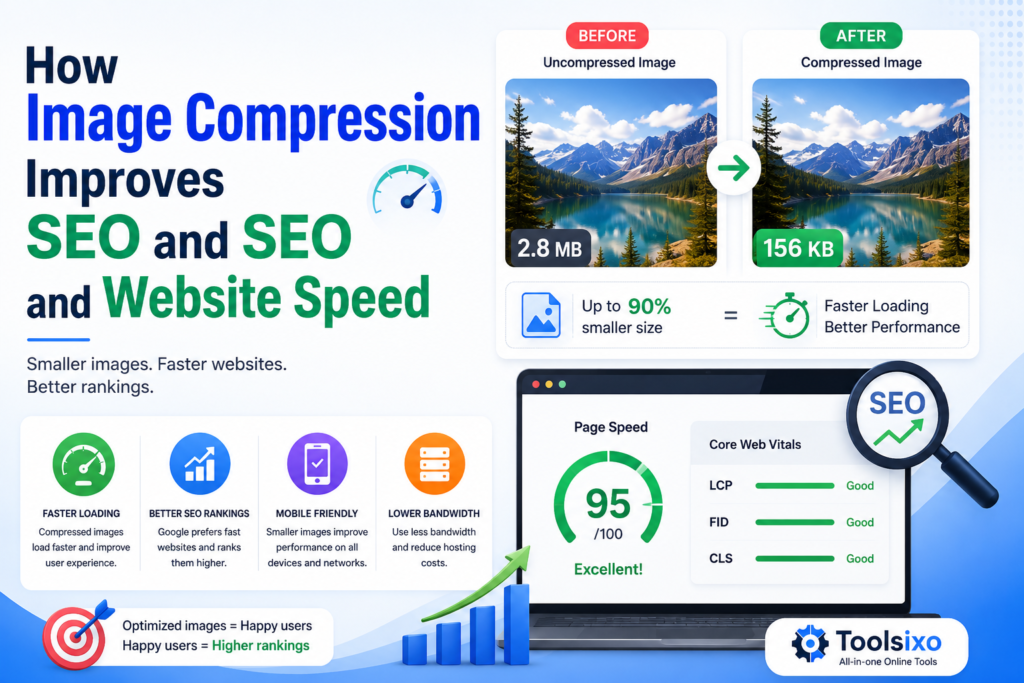
How Image Compression Improves SEO
Image compression can support SEO by making image files smaller and pages lighter. This may improve loading performance and create a smoother experience for visitors, especially those using mobile devices or slower connections.
However, compression is not a shortcut to higher rankings. It works best as part of a broader image SEO strategy that includes proper dimensions, descriptive filenames, accurate alt text, and responsive delivery.
What Is Image Compression?
Image compression reduces the data required to store and display an image.
There are two common types:
– Lossy compression removes some image data to produce a smaller file. If applied too heavily, it can create blur or visible artifacts.
– Lossless compression reduces file size while preserving the original image data, although the reduction may be smaller.
The goal is not simply to create the smallest possible file. A well-optimized image should be lightweight while remaining clear enough for its purpose.
How Does Image Compression Help SEO?
1. It Reduces Page Weight
Every image must be downloaded when someone visits a page. Large photos, banners, screenshots, and product images can make the page heavier.
Compression reduces the amount of image data transferred to a visitor’s browser. The difference can become substantial when a page contains several images.
2. It Can Improve Loading Performance
Smaller image files generally take less time to transfer than larger versions of the same image. This can help content appear sooner, although the final result also depends on hosting, scripts, fonts, caching, and other page resources.
You can compress JPG, PNG, and WebP files with the free Toolsixo Image Compressor. It works directly in the browser, requires no signup, and adds no watermark.
3. It Supports Core Web Vitals
Google’s Core Web Vitals assess important parts of the visitor experience. Large images can affect performance, particularly when the main visual is the largest element visible near the top of a page.
Compressing that image may reduce the time needed to download it. Compression alone may not resolve every Core Web Vitals issue, but it is a practical place to start when images are unnecessarily large.
4. It Creates a Better Mobile Experience
Mobile users may have slower or less stable connections than desktop visitors. Sending an oversized desktop image to a small screen wastes data and can delay the page.
Compression helps, but responsive images are also important. Together, these practices allow browsers to load a lighter file suited to the visitor’s screen.
5. It Can Reduce Bandwidth Usage
Smaller images require less data for each page view. This can reduce bandwidth consumption for the website and its visitors.
The benefit grows when the same image-heavy page receives frequent traffic.
6. It Makes Image-Heavy Pages Easier to Browse
Product galleries, tutorials, portfolios, and long articles often contain many visuals. Even a modest saving on each image can reduce the total weight of the page.
This makes compression especially useful for:
– Ecommerce product pages
– Blog tutorials
– Photography portfolios
– Landing pages
– Online menus
– Property listings
– Software documentation
Image Compression Is Only One Part of Image SEO
A compressed image is not necessarily SEO-friendly. Search engines and visitors still need to understand it.
Combine compression with the following practices.
Resize Images Before Uploading
Compression changes file size, while resizing changes width and height.
If a page displays an image at 800 pixels wide, uploading a 5000-pixel-wide original is usually unnecessary. Resize it for the intended placement and then compress the resized version.
Choose a Suitable Format
Different formats work well for different content:
– WebP: General website photos and illustrations
– AVIF: Efficient compression when supported by your workflow
– JPG: Photographs and images with many colors
– PNG: Graphics that need transparency or sharp details
– SVG: Logos, icons, and scalable illustrations
For a deeper comparison, read Best Image Formats for Websites before choosing JPG, PNG, WEBP or SVG for a page.
Use Descriptive Filenames
Rename files before uploading them.
Instead of:
IMG_7359.jpg
Use:
image-compression-improves-seo.jpg
Keep filenames concise, descriptive, and separated with hyphens.
Write Helpful Alt Text
Alt text explains an image’s content or function. It supports accessibility and helps search engines understand the visual.
A useful example is:
Comparison of original and compressed website image file sizes
Avoid repeating the same keyword in every image description. Alt text should accurately describe each image rather than act as a list of search terms.
Serve Responsive Images
Responsive image settings let browsers choose an appropriate file based on screen size and resolution. This prevents mobile visitors from downloading unnecessarily large desktop images.
Lazy-Load Off-Screen Images
Lazy loading delays certain images until they are close to entering the visible area. It can reduce the amount of content loaded initially.
Be cautious with important images at the top of a page. Delaying the primary image may work against your performance goals.
How to Compress Images for SEO
Follow this simple workflow:
Choose the final placement for the image.
Crop unnecessary areas.
Resize it to suitable dimensions.
Select the appropriate image format.
Open the Toolsixo Image Compressor.
Upload a JPG, PNG, or WebP file.
Select Compress Image.
Download the optimized version.
Compare its quality and file size with the original.
Rename it descriptively and add accurate alt text.
Upload it and test the published page.
Keep a copy of the original before replacing an existing website image.
How Much Should You Compress an Image?
There is no single compression setting that works for every image.
A photograph may tolerate more compression than a screenshot containing small text. A decorative background may not need the same detail as a product image.
Use this practical rule: choose the smallest version that still looks clear at its intended display size.
Check the image for:
– Blurry text
– Blocky areas
– Distorted colors
– Rough edges
– Missing transparency
– Poor appearance on high-resolution screens
If those problems are visible, use a less aggressive setting or test another format.
How to Measure the SEO Impact
Do not rely only on the compressed file size. Test the complete published page.
Use PageSpeed Insights to examine performance and identify possible image-related issues. Compare results before and after optimization, but remember that individual tests can vary.
Also monitor:
– Mobile and desktop performance
– Core Web Vitals data
– Page loading behavior
– Organic search traffic
– Visitor engagement
– Conversion performance
Compression may contribute to improvements, but it is difficult to attribute every SEO change to one optimization.